systemd Demystified: Services, Timers, and Targets
Master systemd unit files, dependency ordering with Wants/Requires/After, timer units as cron replacements, socket activation, and diagnostic tools like journalctl and systemd-analyze blame.
Infrastructure engineer with 10+ years building production systems on AWS, GCP,…
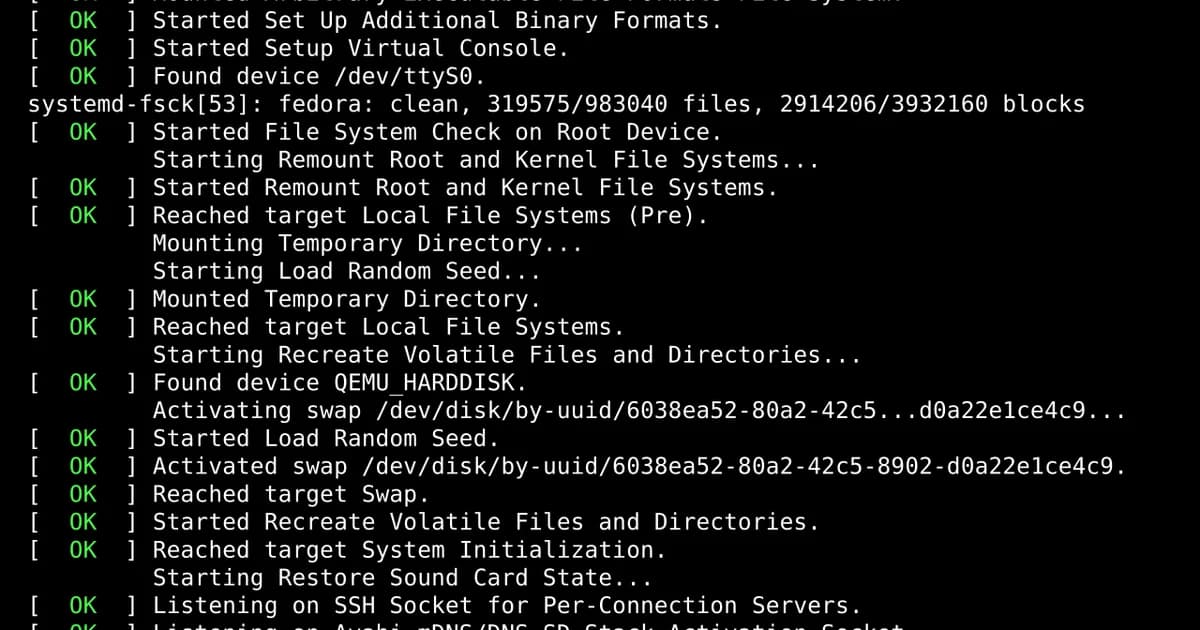
From rc Scripts to systemd: A 53-Year Timeline
The war over how Linux boots has been running since before most people reading this started their careers. Understanding the historical decisions is the fastest way to understand why systemd unit files look the way they do.
- 1969 -- UNIX's
initis born at Bell Labs. PID 1. Read/etc/ttys, spawngetty, wait. No concept of services beyond login shells. - 1983 -- System V ships with SysVinit.
/etc/rc.d/rc3.d/S85sshdshell scripts, executed in sorted filename order. Runlevels. Gigabytes of Bash. - 1992-2005 -- Linux distributions adopt SysVinit with minor variations (BSD-style
rcfor Slackware, LSB headers for Debian). No dependency tracking -- you encoded order via filename prefixes. - 2006 -- Canonical ships Upstart on Ubuntu 6.10. First serious attempt at event-driven init on Linux. Still shell-script-heavy.
- 2008 -- Apple ships launchd, the direct inspiration for systemd. Declarative plist files, socket activation, on-demand service starting.
- 2010 -- Lennart Poettering and Kay Sievers release systemd 1. Written in C, parallel service starts, unit files instead of shell scripts, socket activation borrowed from launchd.
- 2011-2014 -- The flame wars. Debian votes on default init (systemd wins in 2014). Devuan forks to stay on SysVinit. The "Boycott systemd" site launches and eventually goes dormant.
- 2015 -- Red Hat 7, Debian 8, Ubuntu 15.04 all default to systemd. The argument is effectively over on servers.
- 2017 -- systemd absorbs udev, logind, resolved, networkd, timesyncd. Critics call it "empire building." Defenders call it "finally having a coherent stack."
- 2020-2026 -- systemd is PID 1 on every mainstream distro. Even Alpine ships an optional systemd layer for containers. Fighting it is a choice, not a necessity.
Every design decision in systemd -- declarative unit files, socket activation, cgroup integration, journald -- is a reaction to something that hurt in SysVinit or Upstart. Boot times dropped from 90 seconds to under 10. Service dependencies became knowable instead of filename-tricks. Logs became structured. Once you see the history, the complaints about "monolithic" systemd make more sense (it does a lot) and matter less (the alternative is 30 shell scripts you rediscover every outage).
Unit Files: The Core Abstraction
Everything in systemd revolves around unit files. A unit is a configuration file that describes a resource systemd manages. The most common types:
- .service -- a process or daemon
- .timer -- a scheduled trigger (replacement for cron)
- .socket -- a socket for on-demand activation
- .target -- a group of units (like a runlevel)
- .mount -- a filesystem mount point
- .path -- watches a filesystem path for changes
Unit files live in three locations, in order of priority:
| Location | Purpose | Survives Updates |
|---|---|---|
/etc/systemd/system/ | Admin overrides and custom units | Yes |
/run/systemd/system/ | Runtime units (transient) | No |
/usr/lib/systemd/system/ | Package-installed defaults | Overwritten on updates |
Pro tip: Never edit files in
/usr/lib/systemd/system/directly. Usesystemctl edit myserviceto create an override file in/etc/systemd/system/myservice.service.d/override.conf. Your changes survive package updates, and you only need to specify the directives you're changing.
Definition sidebar: systemd is the Linux init system and service manager that runs as PID 1 on every major modern distribution. It parses declarative unit files (.service, .timer, .socket, .target, .mount, .path), enforces dependencies, supervises processes with auto-restart, captures stdout/stderr via journald, and exposes a unified management interface through
systemctl.
Anatomy of a Service Unit
Here's a real-world service unit for a Node.js application:
[Unit]
Description=My Node.js Application
Documentation=https://example.com/docs
After=network.target postgresql.service
Wants=postgresql.service

[Service]
Type=simple
User=app
Group=app
WorkingDirectory=/opt/myapp
Environment=NODE_ENV=production
EnvironmentFile=/opt/myapp/.env
ExecStartPre=/usr/bin/npm run db:migrate
ExecStart=/usr/bin/node dist/server.js
ExecStop=/bin/kill -SIGTERM $MAINPID
Restart=on-failure
RestartSec=5
StartLimitBurst=3
StartLimitIntervalSec=60

[Install]
WantedBy=multi-user.target
How to Write a systemd Service Unit File
- Create the unit file at
/etc/systemd/system/myapp.service - Set the [Unit] section -- add a Description, and use
After=andWants=to declare dependencies on other services - Configure the [Service] section -- set
Type(usuallysimpleorforking), specifyUser/Group, defineExecStartwith the full binary path, and setRestart=on-failure - Add [Install] -- use
WantedBy=multi-user.targetso the service starts on boot - Reload and enable -- run
systemctl daemon-reloadthensystemctl enable --now myapp
Key Directives Explained
ExecStartPre runs before the main process. Use it for database migrations, config validation, or directory creation. If it fails, the service won't start.
ExecStart is the main process. For Type=simple, systemd considers the service started as soon as this process is forked. Always use absolute paths.
ExecStop defines how to stop the service. If you don't specify it, systemd sends SIGTERM followed by SIGKILL after a timeout (90 seconds by default).
Dependency Ordering: Wants, Requires, After
Dependency management is where people get confused. systemd has two separate concepts that work together:
| Directive | Purpose | Effect on Failure |
|---|---|---|
Wants= | Soft dependency -- try to start the other unit | This unit still starts if the wanted unit fails |
Requires= | Hard dependency -- the other unit must succeed | This unit fails if the required unit fails |
After= | Ordering -- wait for the other unit to finish starting | Only controls order, not dependency |
Before= | Ordering -- start this unit before the other | Only controls order, not dependency |
Watch out:
Wants=andRequires=don't imply ordering. If you writeWants=postgresql.servicewithoutAfter=postgresql.service, both services start simultaneously. You almost always want bothWants=andAfter=together.
Targets: The Modern Runlevels
Targets group units together and represent system states. They replace the old SysVinit runlevels:
| Target | Old Runlevel | Description |
|---|---|---|
poweroff.target | 0 | System halt |
rescue.target | 1 | Single-user mode |
multi-user.target | 3 | Multi-user, no GUI |
graphical.target | 5 | Multi-user with GUI |
reboot.target | 6 | System reboot |
# Check the current default target
systemctl get-default

# Set default target to multi-user (no GUI)
systemctl set-default multi-user.target

# Switch to rescue mode immediately
systemctl isolate rescue.target
Timer Units: Replacing cron
Systemd timers are cron's replacement, and they're better in every measurable way: they support calendar expressions, monotonic intervals, randomized delays to avoid thundering herds, and they log through journald so you can actually see what happened.
Do systemd timers replace cron?
Yes, for most use cases. systemd timers offer better logging integration through journald, dependency management, and the ability to catch up on missed runs. Cron still works and is simpler for one-off scheduling, but timers are the modern approach on systemd-based systems and give you systemctl list-timers for visibility into what's scheduled.
A timer needs two files: the timer unit and the service unit it triggers.
# /etc/systemd/system/backup.timer
[Unit]
Description=Daily database backup

[Timer]
OnCalendar=*-*-* 02:00:00
RandomizedDelaySec=900
Persistent=true

[Install]
WantedBy=timers.target
# /etc/systemd/system/backup.service
[Unit]
Description=Database backup job
[Service]
Type=oneshot
User=backup
ExecStart=/opt/scripts/backup.sh
# Enable and start the timer
systemctl enable --now backup.timer

# List all active timers
systemctl list-timers --all

# Manually trigger the service (for testing)
systemctl start backup.service
Persistent=true means if the system was off when the timer should have fired, it runs immediately on the next boot. RandomizedDelaySec=900 adds up to 15 minutes of jitter, which prevents every server in your fleet from hammering the backup target at exactly 2 AM.
Socket Activation
Socket activation lets systemd listen on a port and only start the actual service when a connection arrives. This speeds up boot time and means services that are rarely used don't consume resources until needed.
# /etc/systemd/system/myapp.socket
[Unit]
Description=My App Socket

[Socket]
ListenStream=8080
Accept=no

[Install]
WantedBy=sockets.target
When a connection arrives on port 8080, systemd starts the corresponding myapp.service and passes it the socket file descriptor. The service handles the request without any dropped connections.
Diagnostic Tools
journalctl: Reading Logs
# Logs for a specific service
journalctl -u myapp.service

# Follow logs in real time
journalctl -u myapp.service -f

# Logs since last boot
journalctl -b

# Logs from a time range
journalctl --since "2024-01-15 10:00" --until "2024-01-15 11:00"

# Only errors and above
journalctl -u myapp.service -p err

# JSON output (for parsing)
journalctl -u myapp.service -o json-pretty
systemctl: Service Management
# Detailed status with recent logs
systemctl status myapp.service

# List all failed units
systemctl --failed

# Show all dependencies of a unit
systemctl list-dependencies myapp.service

# Check if a unit is enabled
systemctl is-enabled myapp.service
systemd-analyze: Boot Performance
# Total boot time
systemd-analyze

# Time each unit took to start (sorted by duration)
systemd-analyze blame

# Critical chain -- the longest dependency path
systemd-analyze critical-chain

# Generate an SVG boot chart
systemd-analyze plot > boot-chart.svg
Pro tip:
systemd-analyze blameis the first command to run when boot times are slow. It shows which units took the longest to start. Pair it withsystemd-analyze critical-chainto see which slow unit is actually on the critical path versus just slow but parallel.
Hosting and Server Costs
Managing systemd units is a core skill for any VPS or dedicated server. Here's what you'll pay for entry-level servers where you'll put this knowledge to use:
| Provider | Plan | Monthly Cost | Best For |
|---|---|---|---|
| Hetzner | CX22 | ~$4.35 | Best value in Europe |
| DigitalOcean | Basic Droplet | $4.00 | Developer-friendly UI |
| Vultr | Cloud Compute | $2.50 | Cheapest entry point |
| AWS EC2 | t4g.micro | ~$6.10 | AWS ecosystem integration |
| Linode | Nanode | $5.00 | Simple, predictable pricing |
Failure Modes: What Breaks systemd Services in Production
A service that worked on your laptop but does not start under systemd fails for one of a small number of reasons. These are the ones I have debugged more than once.
Type=simple When the Service Is Actually Forking
If your service daemonises (double-forks into the background), systemd with Type=simple thinks the main process exited immediately and marks the unit "activating (failed)." Switch to Type=forking and set PIDFile=, or better, reconfigure the service to run in the foreground (most modern daemons support --foreground or -F).
EnvironmentFile Path Is Wrong and Fails Silently
A missing EnvironmentFile= is not fatal by default. The service starts with an empty environment and then fails deep inside application code with "DATABASE_URL is undefined." Add EnvironmentFile=-/opt/app/.env (the - prefix makes it optional) only if you actually want optional behaviour; otherwise omit the dash so the unit fails loudly.
Restart=always Masks a Crash Loop
With Restart=always and no StartLimitBurst, a service that crashes immediately will restart 10,000 times per minute, filling your disk with journald logs and never surfacing in systemctl status as "failed." Always pair with StartLimitBurst=3 and StartLimitIntervalSec=60 so systemd gives up after 3 restarts in a minute.
Timer Drift From Missed Runs
A timer with OnCalendar=*-*-* 02:00:00 but no Persistent=true silently skips runs when the server is off. The backup job never fires, nobody notices until the 30-day retention window closes on real outages. Always set Persistent=true for anything where a missed run matters.
After= Without Wants=/Requires=
A service with After=postgresql.service but no Wants=postgresql.service will happily start before PostgreSQL if PostgreSQL is not enabled. After= only controls order when both are starting in this transaction. You almost always want both directives together.
journald Rate-Limiting Drops Your Logs
By default, journald rate-limits to 10,000 messages per 30 seconds per service. A service logging aggressively during an incident loses exactly the log lines you need. Tune RateLimitBurst= and RateLimitIntervalSec= in /etc/systemd/journald.conf, or forward to a centralized log aggregator that does not care.
User Services Die at Logout
systemctl --user services stop when the user logs out unless lingering is enabled. A long-running user service that "mysteriously dies at night" is usually a cron-triggered logout or a session timeout. Fix: loginctl enable-linger <user>.
Frequently Asked Questions
What is the difference between Wants and Requires in systemd?
Wants= is a soft dependency -- systemd will try to start the other unit, but your service starts regardless of whether it succeeds. Requires= is a hard dependency -- if the required unit fails to start, your service also fails. In practice, Wants= is safer for most cases because it prevents cascading failures when a dependency has a transient issue.
How do I make a systemd service start on boot?
Run systemctl enable myservice. This creates a symlink in the target directory (usually multi-user.target.wants/) so systemd knows to start it during boot. To start it immediately and enable it in one command, use systemctl enable --now myservice. You'll also need a [Install] section with WantedBy=multi-user.target in your unit file.
Why does my service show "activating" and then fail?
This usually means ExecStartPre or ExecStart is exiting with a non-zero code. Check journalctl -u myservice -n 50 for the actual error. Common causes: wrong binary path (systemd requires absolute paths), missing environment variables, or the User specified in the unit file doesn't have permission to run the command.
How do systemd timers differ from cron jobs?
Timers integrate with journald for logging, support Persistent=true to catch up on missed runs, allow randomized delays to prevent thundering herds, and can depend on other units. Cron is simpler for basic scheduling but offers no logging, no dependency management, and no visibility via systemctl list-timers.
What does systemd-analyze blame show?
systemd-analyze blame lists every unit started during boot, sorted by how long each took to initialize. It's the first tool to reach for when investigating slow boot times. Note that units starting in parallel may show high times individually but not affect total boot duration. Use critical-chain to see the actual critical path.
Can I use systemd without root access?
Yes. systemd supports user-level services via systemctl --user. Place unit files in ~/.config/systemd/user/ and manage them with systemctl --user start myservice. User services run as your user and can start on login. Enable lingering with loginctl enable-linger username to keep them running after you log out.
Conclusion
Systemd isn't going anywhere. Learn unit files, understand the dependency model (Wants + After for most things), use timers instead of cron, and lean on journalctl and systemd-analyze for debugging. The investment pays off every time you deploy a new service, diagnose a boot issue, or schedule a maintenance task. Start by converting one of your existing cron jobs to a timer unit -- it'll take ten minutes and you'll immediately see the benefits of integrated logging and failure handling.
Written by
Abhishek Patel
Infrastructure engineer with 10+ years building production systems on AWS, GCP, and bare metal. Writes practical guides on cloud architecture, containers, networking, and Linux for developers who want to understand how things actually work under the hood.
Related Articles
Can You Run LLMs Without GPU? CPU Benchmarks & Reality Check
A deep dive into running large language models on CPUs. Includes performance benchmarks, limitations, and optimization strategies.
10 min read
NetworkingMacvlan and IPvlan in Docker: When to Use Each
Macvlan gives containers unique MACs (each looks like a physical machine); IPvlan shares the host MAC. Real use cases (legacy apps, hardware licensing, multi-tenant), gotchas (host can't reach containers, AWS blocks them), and configuration recipes.
12 min read
CloudCheapest VPS Providers in India (2026)
Compare the cheapest VPS providers with Indian data centres. INR pricing with GST, latency benchmarks from Indian cities, UPI payment options, and CERT-In compliance guidance.
11 min read
Enjoyed this article?
Get more like this in your inbox. No spam, unsubscribe anytime.