Kubernetes Pods, Deployments, and Services: A Visual Guide
Kubernetes complexity concentrates in three core objects: Pods, Deployments, and Services. This visual guide explains what they do, how they connect, and what happens during rolling updates.
Infrastructure engineer with 10+ years building production systems on AWS, GCP,…
Jump to the Section That Matches What Just Broke
Most people land on a Kubernetes explainer because something is already wrong. The Deployment shows "1/3 ready" and nobody knows why. The Service returns connection refused. A pod is stuck Pending. So rather than force you through a theory dump, here is a cheat-sheet that maps symptoms to the object you need to understand, in the order you should read this guide.
| What you are seeing | Which object is responsible | Read next |
|---|---|---|
| "It works on my laptop but kubectl apply does nothing useful" | Pod (wrong scheduling unit) | Pods section below |
| Pod crashed and never came back | Deployment (missing controller) | Deployment section |
| Image update did not roll out cleanly | Deployment / ReplicaSet | Rolling updates |
| curl service-name fails with connection refused | Service (label selector) | Service section |
| External traffic cannot reach the cluster | Service type (ClusterIP vs LoadBalancer) | Service types table |
| Pod works, Service has zero endpoints | Selector mismatch | Common Mistakes |
Kubernetes has more than 60 resource types, but roughly 90 percent of day-to-day debugging lives inside three of them -- Pods, Deployments, and Services. The rest of this guide explains each one with the YAML you will actually write, the failure modes you will actually hit, and a short tour of how a rolling update plays out on the wire. If you are impatient, the Common Mistakes section at the bottom is where most cluster-level "but why?" questions get answered in under 60 seconds.
Pods: The Scheduling Unit You Almost Never Create Directly
A Pod is the smallest deployable unit in Kubernetes. It wraps one or more containers that share the same network namespace and storage volumes. In practice, most Pods run a single container -- think of a Pod as a thin wrapper around your container that gives Kubernetes something to schedule.
What's Inside a Pod
Every Pod gets:
- A unique IP address — containers inside the Pod share this IP and communicate over
localhost - Shared storage volumes — any volume mounted on the Pod is accessible to all its containers
- A lifecycle — Pods are born, run, and die. They are not resurrected. When a Pod dies, a new one with a new IP replaces it.
A Minimal Pod Manifest
apiVersion: v1
kind: Pod
metadata:
  name: my-app
  labels:
    app: web
spec:
  containers:
  - name: app
    image: node:20-alpine
    ports:
    - containerPort: 3000
    resources:
      requests:
        memory: "128Mi"
        cpu: "250m"
      limits:
        memory: "256Mi"
        cpu: "500m"
Watch out: You almost never create Pods directly in production. If a bare Pod crashes, nothing restarts it. Always use a Deployment (or another controller) to manage Pods — that's how you get self-healing and rolling updates.
Why Multiple Containers in One Pod?
The most common pattern is the sidecar. Your main application container runs alongside a helper container that handles a cross-cutting concern:
- Log collector — a Fluentd or Filebeat sidecar that ships logs to your observability stack
- Service mesh proxy — Envoy or Linkerd proxy handling mTLS and traffic routing
- Config reloader — watches for ConfigMap changes and signals the main process to reload
The key rule: put containers in the same Pod only if they must share the same network namespace or filesystem. If they can run independently, they belong in separate Pods.
What Is a Kubernetes Deployment?
A Deployment is a controller that manages a set of identical Pods. You tell it "I want 3 replicas of my app running at all times" and it makes that happen — creating Pods, replacing crashed ones, and performing rolling updates when you push a new image.
Definition: A Deployment is a Kubernetes controller that declaratively manages ReplicaSets and Pods. You specify the desired state (image, replicas, resource limits) and the Deployment controller continuously works to match reality to that specification.
Deployment → ReplicaSet → Pod
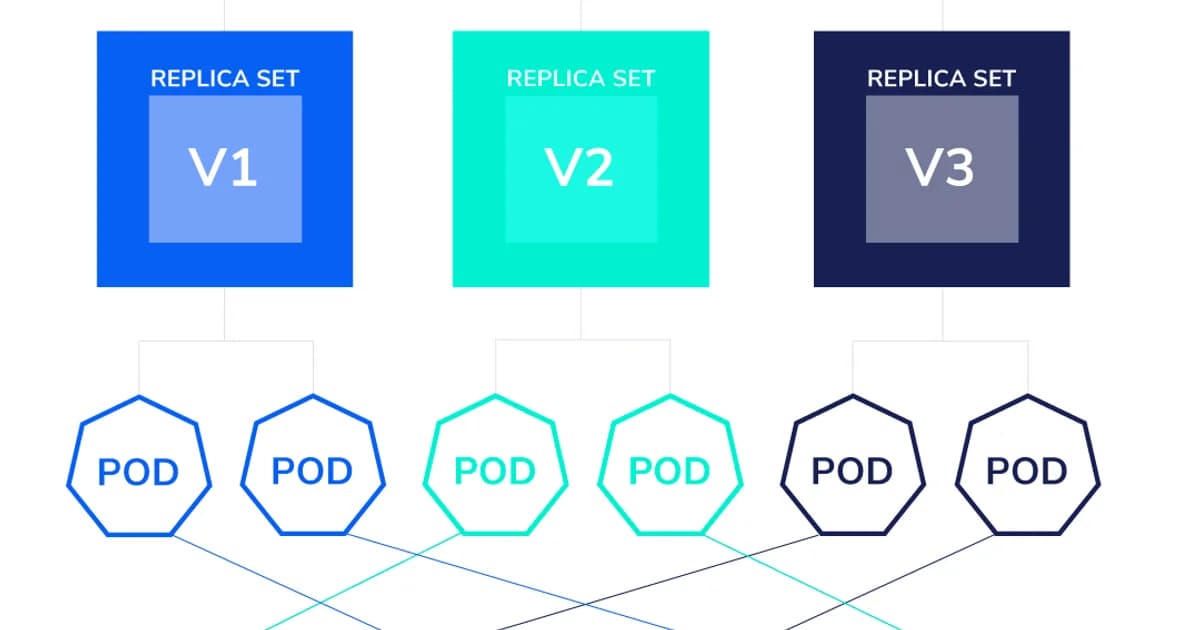
There's a hidden layer most tutorials gloss over. A Deployment doesn't manage Pods directly — it creates a ReplicaSet, and the ReplicaSet creates the Pods. The chain looks like this:
| Object | What It Does | You Create It? |
|---|---|---|
| Deployment | Manages rollouts, rollbacks, and scaling | Yes — you write this YAML |
| ReplicaSet | Ensures N identical Pods are running | No — Deployment creates it |
| Pod | Runs your container(s) | No — ReplicaSet creates it |
When you update a Deployment (say, changing the image tag), it creates a new ReplicaSet with the updated template and gradually scales it up while scaling the old one down. That's a rolling update.
A Production-Ready Deployment
apiVersion: apps/v1
kind: Deployment
metadata:
  name: web-app
  labels:
    app: web
spec:
  replicas: 3
  selector:
    matchLabels:
      app: web
  strategy:
    type: RollingUpdate
    rollingUpdate:
      maxSurge: 1        # allow 1 extra Pod during update
      maxUnavailable: 0   # never drop below desired count
  template:
    metadata:
      labels:
        app: web
    spec:
      containers:
      - name: app
        image: myregistry/web-app:v2.1.0
        ports:
        - containerPort: 3000
        readinessProbe:
          httpGet:
            path: /healthz
            port: 3000
          initialDelaySeconds: 5
          periodSeconds: 10
        livenessProbe:
          httpGet:
            path: /healthz
            port: 3000
          initialDelaySeconds: 15
          periodSeconds: 20
        resources:
          requests:
            memory: "128Mi"
            cpu: "250m"
          limits:
            memory: "512Mi"
            cpu: "1"
Pro tip: Always set
maxUnavailable: 0if you can't afford any downtime during deployments. Combined with a readiness probe, this ensures the new Pod is healthy before any old Pod is terminated. It's slower but safer.
What Happens During a Rolling Update
Here's the step-by-step sequence when you change the image from v2.0.0 to v2.1.0:
- Deployment controller creates a new ReplicaSet with the
v2.1.0template - New ReplicaSet starts one Pod with the new image (respecting
maxSurge: 1) - Readiness probe checks the new Pod — only when it passes does the rollout continue
- Old ReplicaSet scales down by one Pod (respecting
maxUnavailable: 0) - Repeat steps 2-4 until all Pods are running
v2.1.0 - Old ReplicaSet stays around with 0 replicas — this is how
kubectl rollout undoworks instantly
Rolling Back a Bad Deploy
# Check rollout status
kubectl rollout status deployment/web-app

# Something's wrong — roll back to previous version
kubectl rollout undo deployment/web-app

# Roll back to a specific revision
kubectl rollout undo deployment/web-app --to-revision=3

# View revision history
kubectl rollout history deployment/web-app
Rollbacks are instant because Kubernetes just scales the old ReplicaSet back up. No rebuild, no re-pull (unless the image was garbage-collected from the node).
What Is a Kubernetes Service?
Pods are ephemeral — they get new IP addresses every time they're recreated. You can't hardcode a Pod IP and expect it to work tomorrow. A Service gives you a stable network endpoint that automatically routes traffic to the right Pods, even as Pods come and go.
Definition: A Kubernetes Service is a stable abstraction that provides a fixed IP address and DNS name for a dynamic set of Pods, selected by label matching. It acts as an internal load balancer for Pod-to-Pod communication.
How Services Find Pods: Label Selectors
Services use label selectors to decide which Pods receive traffic. This is the glue that connects everything:
| Object | Label | Selector |
|---|---|---|
| Pod (via Deployment template) | app: web | — |
| Service | — | app: web |
The Service watches the cluster for any Pod with app: web label and adds it to its endpoint list. When a Pod dies and a new one spawns, the Service updates automatically. No manual registration needed.
Service Types
| Type | Accessible From | Use Case |
|---|---|---|
| ClusterIP (default) | Inside the cluster only | Internal microservice communication |
| NodePort | External, via node IP + static port | Development, simple external access |
| LoadBalancer | External, via cloud load balancer | Production external traffic (EKS, GKE, AKS) |
| ExternalName | DNS alias to external service | Referencing external databases or APIs |
ClusterIP Service Example
apiVersion: v1
kind: Service
metadata:
  name: web-app
spec:
  type: ClusterIP
  selector:
    app: web          # matches Pods with label app=web
  ports:
  - port: 80          # the port the Service listens on
    targetPort: 3000   # the port on the Pod to forward to
    protocol: TCP
Once created, any Pod in the cluster can reach this Service at web-app.default.svc.cluster.local (or just web-app if they're in the same namespace).
How DNS Works Inside a Cluster
Kubernetes runs a DNS server (CoreDNS) that automatically creates DNS records for every Service. The naming pattern is:
<service-name>.<namespace>.svc.cluster.localIn practice, you can use the short form <service-name> when calling a Service in the same namespace, or <service-name>.<namespace> for cross-namespace calls. The DNS resolution happens automatically — no configuration needed.
Pro tip: When debugging DNS issues inside a cluster, run
kubectl run debug --rm -it --image=busybox -- nslookup web-app.default.svc.cluster.local. This spins up a temporary Pod with DNS tools to test resolution.
How Pods, Deployments, and Services Work Together
Here's the complete picture of deploying and exposing an application:
- You write a Deployment manifest (desired state: 3 replicas, image, resource limits, probes)
- Deployment controller creates a ReplicaSet, which creates 3 Pods
- Pods start on available nodes, each getting a unique cluster IP
- You write a Service manifest with a selector matching your Pod labels
- Service watches for Pods with matching labels and adds them to its endpoint list
- Other Pods (or an Ingress controller) send traffic to the Service's stable IP/DNS name
- Service load-balances across the healthy Pods using round-robin (by default)
When you update the Deployment's image tag, the rolling update replaces Pods one by one. The Service automatically removes old Pods from its endpoints as they terminate and adds new Pods as they pass their readiness probes. Zero downtime, no manual intervention.
Common Mistakes and Confusions
Creating Bare Pods Instead of Deployments
If you kubectl apply a bare Pod manifest and the Pod crashes, it stays dead. Nothing restarts it. Always use a Deployment — it's the same amount of YAML, and you get self-healing, rolling updates, and rollback for free.
Mismatched Label Selectors
The most common debugging headache: your Service selector doesn't match your Pod labels. The Service finds zero endpoints and all traffic fails. Always verify with:
# Check what endpoints the Service has found
kubectl get endpoints web-app

# Verify Pod labels match the Service selector
kubectl get pods --show-labels | grep web
Confusing Port and TargetPort
port is what the Service listens on. targetPort is what the Pod listens on. They don't have to match. A Service can listen on port 80 and forward to your app on port 3000 — this is normal and expected.
Managed Kubernetes Pricing Comparison
Running Kubernetes yourself is an option, but managed services handle the control plane for you. Here's what the big three charge:
| Provider | Service | Control Plane Cost | Worker Node Cost |
|---|---|---|---|
| AWS | EKS | $0.10/hour ($73/month) | Standard EC2 pricing |
| Google Cloud | GKE | Free (Autopilot) / $0.10/hour (Standard) | Standard Compute Engine pricing |
| Azure | AKS | Free | Standard VM pricing |
Did you know? GKE Autopilot and Azure AKS don't charge for the control plane at all. You only pay for the compute your Pods actually use. For small clusters, this can save $70+/month compared to EKS.
Frequently Asked Questions
What is the difference between a Pod and a container in Kubernetes?
A container is a single running process (like a Docker container). A Pod is a Kubernetes wrapper around one or more containers that share networking and storage. Think of a Pod as the scheduling unit — Kubernetes doesn't schedule containers directly, it schedules Pods. Most Pods contain a single container, but sidecar patterns use multiple containers per Pod.
Why should I use a Deployment instead of creating Pods directly?
A bare Pod has no controller watching it. If it crashes or the node fails, the Pod is gone permanently. A Deployment ensures your desired number of replicas are always running, handles rolling updates when you change the image, and supports instant rollback to previous versions. There's no good reason to create bare Pods in production.
What happens to traffic during a Kubernetes rolling update?
During a rolling update, new Pods must pass their readiness probe before receiving traffic. Old Pods are removed from the Service's endpoint list before being terminated. With proper readiness probes and maxUnavailable: 0, users experience zero downtime — requests are always served by healthy Pods.
How does a Kubernetes Service discover which Pods to route traffic to?
Services use label selectors. You define labels on your Pods (via the Deployment template) and a matching selector on the Service. Kubernetes continuously watches for Pods with matching labels and maintains an up-to-date endpoint list. When Pods are created or destroyed, the Service updates automatically.
What is the difference between ClusterIP and LoadBalancer service types?
A ClusterIP Service is only reachable from inside the cluster — other Pods can call it, but external users cannot. A LoadBalancer Service provisions an external load balancer (on AWS, GCP, or Azure) that routes internet traffic into the cluster. Use ClusterIP for internal microservice communication and LoadBalancer (or Ingress) for external-facing services.
Can I run Kubernetes locally for development?
Yes. Tools like minikube, kind (Kubernetes in Docker), and k3s run lightweight single-node clusters on your laptop. Docker Desktop also includes a built-in Kubernetes option. These are ideal for testing manifests and learning without cloud costs.
Conclusion
Pods, Deployments, and Services form the backbone of every Kubernetes application. Pods run your containers. Deployments keep the right number of Pods alive and handle updates. Services provide stable networking so Pods can find each other. Once these three click, concepts like Ingress, ConfigMaps, and StatefulSets become natural extensions rather than mysteries.
Start with a Deployment and a ClusterIP Service. Get those working. Then layer on readiness probes, resource limits, and rolling update strategies. Kubernetes rewards incremental learning — you don't need to understand everything before you deploy your first app.
Written by
Abhishek Patel
Infrastructure engineer with 10+ years building production systems on AWS, GCP, and bare metal. Writes practical guides on cloud architecture, containers, networking, and Linux for developers who want to understand how things actually work under the hood.
Related Articles
Multi-Cluster Kubernetes: Argo CD ApplicationSet Patterns
When 10+ clusters or 50+ services break hand-written GitOps. ApplicationSet's four generators (cluster list, Git directory, PR, cluster decision), real production patterns (env promotion, per-tenant, multi-region failover, preview envs), and the sharp edges (template debugging, cascading mistakes, RBAC).
11 min read
ContainersKubernetes GPU Scheduling: DRA, KAI Scheduler, MIG
Dynamic Resource Allocation replaced device plugins for GPU claims in Kubernetes 1.34. KAI Scheduler adds gang scheduling and queues. MIG slices H100s into 7 isolated tenants. Full production setup with the NVIDIA GPU Operator, topology-aware training, and when to use MIG vs MPS vs time-slicing.
17 min read
CI/CDProgressive Delivery with Argo Rollouts: Canary + Analysis
Argo Rollouts replaces Kubernetes Deployments with a CRD that does weighted canary, metric-gated analysis, and automatic rollback. Production recipe, Prometheus AnalysisTemplates, and a side-by-side with Flagger.
15 min read
Enjoyed this article?
Get more like this in your inbox. No spam, unsubscribe anytime.