DNS Explained: From Domain Name to IP Address, Step by Step
DNS translates domain names into IP addresses in milliseconds. Trace the full resolution chain step by step, learn every record type, and debug common failures like NXDOMAIN and SERVFAIL.
Infrastructure engineer with 10+ years building production systems on AWS, GCP,…
From HOSTS.TXT to 8.8.8.8: How DNS Grew Up With the Internet
In 1983 the entire internet ran on a single flat file. It was called HOSTS.TXT, it lived on a machine at the Stanford Research Institute, and every computer on ARPANET downloaded a fresh copy by hand whenever a new host was added. By 1982 the file was already several hundred kilobytes, the uploads were overwhelming the single maintainer, and the network had outgrown the idea of a central list. Paul Mockapetris published RFCs 882 and 883 in late 1983 proposing a distributed, hierarchical alternative. Those two RFCs -- superseded by the more familiar 1034 and 1035 in 1987 -- are why DNS exists today.
The milestones that followed are the skeleton of the modern internet:
- 1983-1987 -- DNS specification finalised; root servers come online; the
.com,.org,.net,.edu,.gov, and.milTLDs are defined. - 1995 --
dnssecwork begins after the first cache-poisoning attacks are publicly demonstrated. - 1998 -- ICANN is formed to manage the root zone and TLD delegations.
- 2008 -- Dan Kaminsky publicly discloses a resolver vulnerability that forces an industry-wide patch and accelerates DNSSEC deployment.
- 2010 -- DNSSEC signing reaches the root zone.
- 2018 -- Cloudflare launches 1.1.1.1 and Google's 8.8.8.8 passes a trillion queries per day; public recursive resolvers become the default for millions of users.
- 2018-2020 -- DNS-over-HTTPS (RFC 8484) and DNS-over-TLS (RFC 7858) ship in browsers and operating systems, finally putting DNS queries on an encrypted transport 35 years after the original design.
The fundamental data model -- a distributed, hierarchical, cache-first directory -- has not changed since 1987. That is why understanding the 1980s design is still the fastest way to debug a 2026 outage. A typical resolution still takes 20-120 milliseconds, still walks the same root -> TLD -> authoritative chain, and still fails in the same three or four ways. The rest of this guide traces a modern techplained.com lookup through every one of those hops, explains the record types that survived 40 years of evolution, and catalogs the failure modes (NXDOMAIN, SERVFAIL, negative caching, split-horizon) that every developer will eventually hit in production.
Full DNS Resolution: Step by Step
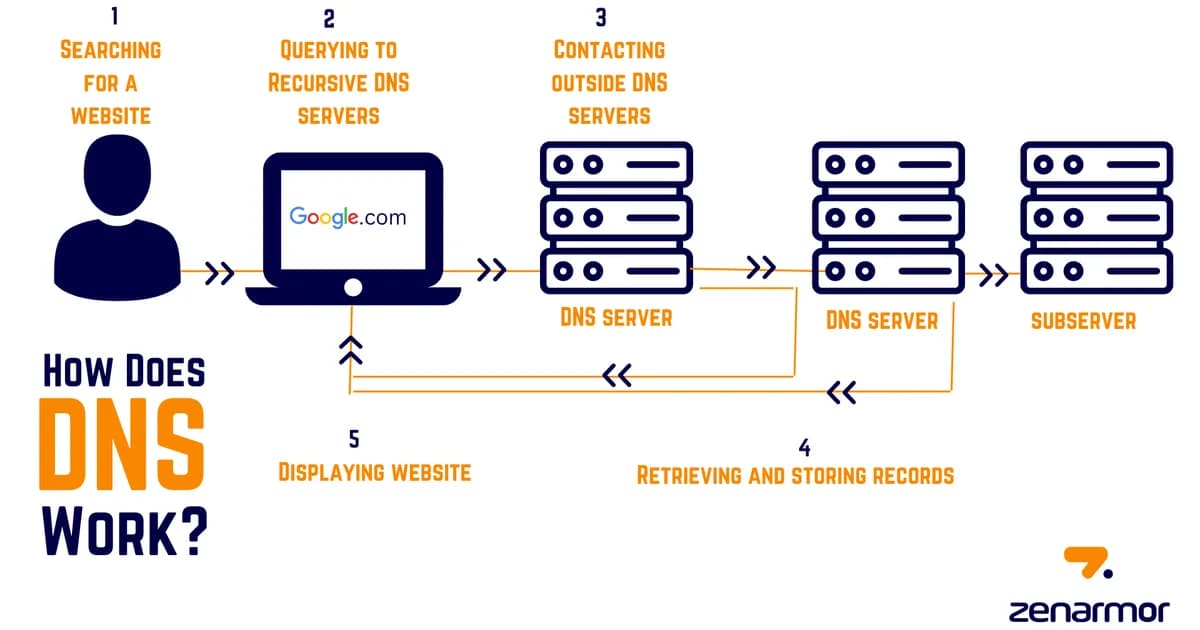
When you type techplained.com into your browser, here's exactly what happens:
Step 1: Browser Cache
Your browser checks its own DNS cache first. If you visited techplained.com recently and the cached record hasn't expired, the browser already knows the IP. Done in microseconds, no network request needed.
Step 2: Operating System Resolver
If the browser cache misses, the OS resolver takes over. On Linux this is typically systemd-resolved or the /etc/resolv.conf configuration. On macOS and Windows, the OS maintains its own DNS cache. The OS also checks /etc/hosts (or C:\Windows\System32\drivers\etc\hosts) — a flat file that maps domains to IPs locally.
Step 3: Recursive Resolver
If the OS doesn't have the answer cached, it sends a query to a recursive resolver — usually run by your ISP, or a public resolver like Cloudflare (1.1.1.1) or Google (8.8.8.8). The recursive resolver is the workhorse. It does the actual legwork of chasing down the answer across the DNS hierarchy.
Step 4: Root Nameserver
The recursive resolver asks one of the 13 root nameserver clusters: "Where do I find .com domains?" The root server doesn't know the answer to your query — it only knows which servers are responsible for top-level domains like .com, .org, or .io. It responds with a referral to the TLD nameserver.
Step 5: TLD Nameserver
The recursive resolver follows the referral and asks the .com TLD nameserver: "Who is authoritative for techplained.com?" The TLD server responds with the NS records pointing to the domain's authoritative nameservers — typically something like ns1.vercel-dns.com.
Step 6: Authoritative Nameserver
Finally, the recursive resolver asks the authoritative nameserver: "What is the A record for techplained.com?" This server owns the zone file for the domain and returns the actual IP address. The recursive resolver caches this answer and sends it back to your OS, which sends it to your browser, which opens a TCP connection to the IP.
Pro tip: You can trace this entire chain yourself with
dig +trace techplained.com. It shows each hop — root, TLD, authoritative — and the response from each server. It's the single most useful DNS debugging command.
DNS Record Types Explained
A zone file contains multiple record types. Here are the ones you'll actually use:
| Record | Purpose | Example Value |
|---|---|---|
| A | Maps domain to IPv4 address | 76.76.21.21 |
| AAAA | Maps domain to IPv6 address | 2606:4700::6810:84e5 |
| CNAME | Alias pointing one domain to another | www.techplained.com -> techplained.com |
| MX | Mail server for the domain (with priority) | 10 mx1.emailprovider.com |
| TXT | Arbitrary text — used for verification, SPF, DKIM | v=spf1 include:_spf.google.com ~all |
| NS | Delegates a zone to specific nameservers | ns1.vercel-dns.com |
| SOA | Start of Authority — zone metadata and serial number | Serial, refresh, retry, expire timers |
A Records: The Foundation
An A record is the most fundamental DNS record. It maps a domain name directly to an IPv4 address. When someone says "point your domain to this IP," they mean "create an A record."
techplained.com. 300 IN A 76.76.21.21The 300 is the TTL (time to live) in seconds — resolvers will cache this answer for 5 minutes before asking again.
CNAME Records: Aliases with a Catch
A CNAME creates an alias from one domain to another. When a resolver hits a CNAME, it restarts the lookup using the target domain.
www.techplained.com. 3600 IN CNAME techplained.com.The catch: a CNAME cannot coexist with other record types on the same name. You can't have a CNAME and an MX record on the same subdomain. And you can't use a CNAME at the zone apex (techplained.com itself) — that's why many DNS providers offer a proprietary "ALIAS" or "ANAME" record that acts like a CNAME at the apex but resolves to an A record before responding.
MX Records: Email Routing
MX records tell the world which servers handle email for your domain. Each record has a priority number — lower numbers are tried first.
techplained.com.    3600    IN    MX    10 mx1.mail.com.
techplained.com.    3600    IN    MX    20 mx2.mail.com.
If mx1 is down, sending servers fall back to mx2. This is how email achieves basic high availability.
TXT Records: The Swiss Army Knife
TXT records store arbitrary text. They've become the de facto way to prove domain ownership and configure email security:
- SPF — declares which servers are allowed to send email from your domain
- DKIM — publishes a public key for email signature verification
- DMARC — tells receiving servers what to do with emails that fail SPF/DKIM checks
- Domain verification — Google, GitHub, and dozens of SaaS tools ask you to add a TXT record to prove you own the domain
TTL: The Cache Timer That Controls Everything
Every DNS record has a TTL (Time to Live) value in seconds. When a resolver caches a record, it will serve that cached answer until the TTL expires. After that, it queries the authoritative server again.
Definition: TTL (Time to Live) is the duration in seconds that a DNS record can be cached by resolvers before they must re-query the authoritative nameserver. It controls the trade-off between query load on your nameservers and how quickly DNS changes propagate.
Choosing the Right TTL
| TTL Value | Use Case | Trade-off |
|---|---|---|
| 60-300s (1-5 min) | Records you change often, failover IPs | More queries to your nameserver, faster propagation |
| 3600s (1 hour) | General purpose, good default | Balanced cache vs. freshness |
| 86400s (24 hours) | Stable records (MX, NS) that rarely change | Fewer queries, slower propagation on change |
Pro tip: Before a planned migration, lower your TTL to 60 seconds 24-48 hours in advance. This ensures that by the time you flip the IP, most resolvers have short-lived caches. After the migration is stable, raise the TTL back to save query load.
DNS Propagation: Why Changes Aren't Instant
"It's a DNS propagation issue" is the most common explanation when a domain change doesn't take effect immediately. Here's what's actually happening.
When you update a DNS record, the change takes effect on your authoritative nameserver instantly. But every resolver in the world has the old record cached with the old TTL. Those caches expire independently — some resolvers will see the new record in minutes, others might hold the old record for hours.
This is not a "wave" of propagation spreading across the internet. It's thousands of independent caches expiring at different times based on when they last queried and what TTL they received.
Negative Caching: The Gotcha Nobody Warns You About
Here's something that catches people off guard: DNS caches "not found" responses too. If a resolver queries for staging.techplained.com before you've created the record, it caches the NXDOMAIN (non-existent domain) response. The SOA record's minimum field controls how long this negative response is cached — often 3600 seconds (1 hour).
So if you test a domain before setting up the record, you might have to wait an hour after creating it before the negative cache expires. This trips up more people than any other DNS behavior.
Common DNS Failure Modes
NXDOMAIN — Domain Does Not Exist
The authoritative nameserver says this domain name has no records at all. Common causes: typo in the domain, NS records not properly delegated to your DNS provider, or you queried before the record was created (negative caching).
# Debug NXDOMAIN
dig techplained.com +short     # returns nothing? check NS delegation
dig NS techplained.com         # are the nameservers correct?
whois techplained.com          # is the domain actually registered?
SERVFAIL — Server Failure
The recursive resolver tried to get an answer but something went wrong upstream. This can mean the authoritative nameserver is down, DNSSEC validation failed, or there's a network issue between resolvers. SERVFAIL is the "500 Internal Server Error" of DNS — it tells you something broke but not exactly what.
Split-Horizon DNS
Split-horizon (also called split-brain) DNS returns different answers depending on who's asking. A corporate network might resolve app.company.com to an internal IP (10.0.1.5) for employees on the VPN, but to a public IP (203.0.113.50) for everyone else.
This is useful for internal services, but it's a debugging nightmare when someone says "it works for me but not for you." Always ask which DNS resolver someone is using when troubleshooting.
# Compare answers from different resolvers
dig @1.1.1.1 app.company.com    # Cloudflare (public answer)
dig @10.0.0.1 app.company.com   # Internal resolver (private answer)
dig @8.8.8.8 app.company.com    # Google (public answer)
DNS Tools and Hosting Costs
Most DNS hosting is either free or very cheap, but the feature set varies significantly:
| Provider | Cost | Standout Feature |
|---|---|---|
| Cloudflare DNS | Free | Fastest authoritative DNS, built-in DDoS protection |
| AWS Route 53 | $0.50/zone/month + $0.40/million queries | Health checks, latency-based routing, alias records |
| Google Cloud DNS | $0.20/zone/month + $0.40/million queries | 100% SLA, tight GCP integration |
| Azure DNS | $0.50/zone/month + $0.40/million queries | Private DNS zones for VNets, alias records |
| Vercel DNS | Free (with Vercel hosting) | Zero-config for Vercel deployments |
Pro tip: If you're running a production site, use a DNS provider with anycast routing (Cloudflare, Route 53, Google Cloud DNS). Anycast means your DNS queries are answered by the nearest server globally, cutting resolution time to single-digit milliseconds.
Frequently Asked Questions
How long does DNS propagation take?
DNS changes take effect on the authoritative nameserver immediately. The delay comes from cached records across the internet expiring at different times based on their TTL value. With a TTL of 300 seconds (5 minutes), most resolvers will see your change within 5-10 minutes. With a 24-hour TTL, it can take up to 48 hours for every cache worldwide to expire.
What is the difference between an A record and a CNAME record?
An A record maps a domain name directly to an IP address. A CNAME creates an alias that points one domain name to another domain name (which itself must resolve to an A record). CNAMEs add an extra lookup step and cannot coexist with other record types on the same name.
Why can't I use a CNAME at the zone apex?
The DNS specification (RFC 1034) requires that a CNAME cannot coexist with any other record type. The zone apex (e.g., techplained.com) must have SOA and NS records, which conflicts with a CNAME. Most DNS providers work around this with proprietary ALIAS or ANAME records that flatten the CNAME at query time.
What does changing my nameservers actually do?
Changing nameservers (NS records at the registrar) changes which DNS servers are authoritative for your domain. All record lookups for your domain will be directed to the new nameservers. This is what happens when you move DNS hosting from one provider to another (e.g., from your registrar to Cloudflare).
What is DNSSEC and do I need it?
DNSSEC (DNS Security Extensions) adds cryptographic signatures to DNS responses, allowing resolvers to verify that the response hasn't been tampered with. It protects against DNS spoofing and cache poisoning attacks. It's worth enabling if your DNS provider supports it, but misconfigured DNSSEC is worse than no DNSSEC — it causes SERVFAIL errors that break your entire domain.
How do I check what DNS records are set for a domain?
Use dig (Linux/macOS) or nslookup (Windows). The command dig techplained.com ANY shows all records, though some resolvers block ANY queries. For specific types, use dig A techplained.com, dig MX techplained.com, etc. Online tools like DNS Checker show results from multiple global locations simultaneously.
Conclusion
DNS is the foundation layer of the internet that most developers take for granted until something breaks. The resolution chain — browser cache, OS resolver, recursive resolver, root, TLD, authoritative — is the same whether you're loading a blog or processing a payment. Understanding record types, TTLs, and failure modes turns DNS problems from mysterious outages into diagnosable, fixable issues.
Start by running dig +trace on your own domain. See the hierarchy in action. Then check your TTLs — if they're set to 24 hours and you ever plan to migrate, you'll want to lower them well in advance. DNS rewards preparation and punishes improvisation.
Written by
Abhishek Patel
Infrastructure engineer with 10+ years building production systems on AWS, GCP, and bare metal. Writes practical guides on cloud architecture, containers, networking, and Linux for developers who want to understand how things actually work under the hood.
Related Articles
Network Firewalls vs WAFs: Understanding Your Defense Layers
Network firewalls filter by IP and port at Layer 3/4. WAFs inspect HTTP content at Layer 7. Learn when you need each and how to configure them together.
10 min read
CloudBest CDN Providers for India (2026)
India-specific CDN benchmarks from 8 cities across Jio, Airtel, BSNL, and Vi comparing Cloudflare, CloudFront, Google CDN, Fastly, Bunny CDN, and KeyCDN with TTFB data and INR pricing including GST.
13 min read
SecurityBest WAF Providers (2026): Cloudflare vs AWS WAF vs Akamai vs Imperva
Cloudflare, AWS WAF, Akamai, and Imperva compared on pricing, OWASP detection, bot management, API security, and rule-writing ergonomics. Real attack-replay results, honest weaknesses, and a buyer decision matrix.
16 min read
Enjoyed this article?
Get more like this in your inbox. No spam, unsubscribe anytime.