What Is Docker? Containers Explained Simply
A practical introduction to Docker covering containers vs VMs, Dockerfiles, docker-compose, volumes, networking, and Docker Desktop licensing alternatives.
Infrastructure engineer with 10+ years building production systems on AWS, GCP,…
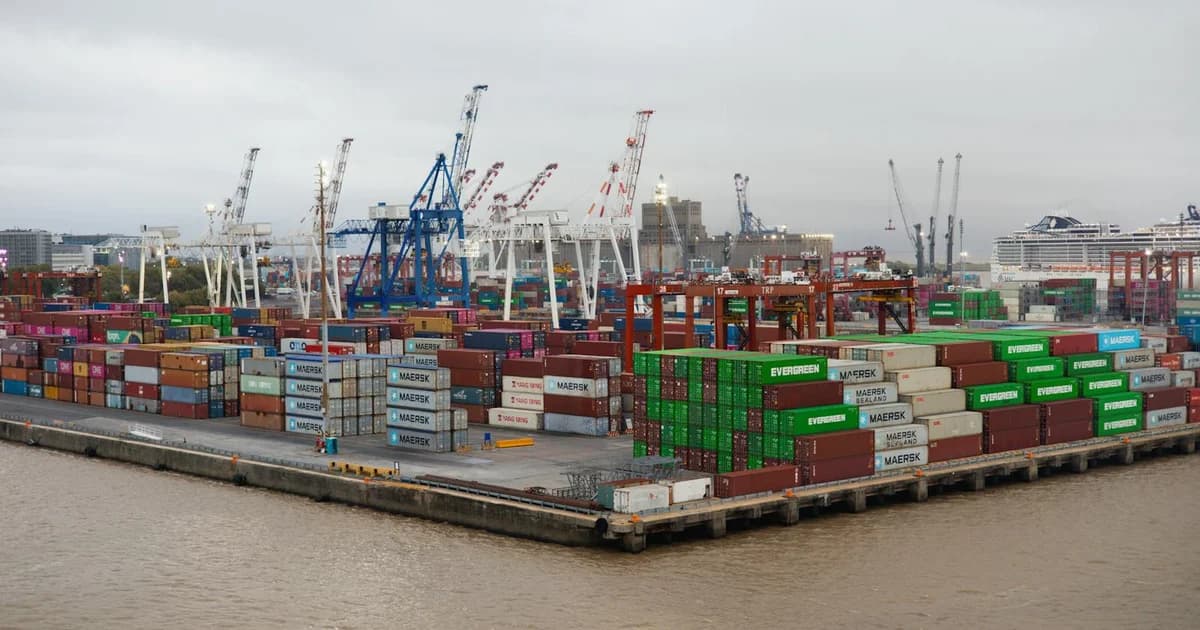
A Container Starts in 200 Milliseconds. A VM Takes 45 Seconds.
A Docker container boots in 200-500 milliseconds, weighs 50 MB on disk, and shares the host's Linux kernel through namespaces and cgroups. A full virtual machine boots in 30-90 seconds, weighs 5-15 GB, and runs its own guest kernel on top of a hypervisor. On the same 8-core, 32 GB server I can run 200 containers comfortably. I can run maybe 15 VMs before the host swaps. That is the entire technical case for Docker compressed into two paragraphs, and it is why nearly every production deployment built after 2015 runs in containers instead of VMs.
Docker shipped in March 2013 to solve "it works on my machine" -- the class of bug where code runs fine on a developer laptop and crashes in production because some library version or kernel flag or environment variable differs. The fix was to bundle the application plus every dependency it needs into an immutable filesystem layer, run it in an isolated process tree, and make that bundle byte-identical between dev, CI, staging, and production. That bundle is a container. The CLI that builds, ships, and runs it is Docker. Everything else in this article -- Dockerfiles, Compose, volumes, networking, registries, licensing -- is the toolkit around that core idea.
Containers vs. Virtual Machines: The Comparison That Matters
| Feature | Containers | Virtual Machines |
|---|---|---|
| Boot time | Milliseconds to seconds | 30-90 seconds |
| Image size | Tens of MBs | Tens of GBs |
| OS model | Shares host kernel via namespaces | Full guest OS per VM |
| Isolation | Process-level (namespaces, cgroups, seccomp) | Hardware-level (hypervisor, VT-x / AMD-V) |
| Density per host | 100-500 containers | 10-20 VMs |
| CPU overhead | ~1-2% (near-native) | ~10-15% |
| Memory overhead | Negligible (shares kernel) | 512 MB - 2 GB per VM for guest OS |
| Security boundary | Good (strengthened by gVisor, Kata, rootless) | Stronger (hardware-enforced) |
| Cross-OS | Linux containers on Linux host only (Mac/Win run a Linux VM) | Any guest on any host with right hypervisor |
| Typical use | Microservices, CI jobs, dev envs, stateless apps | Multi-tenant isolation, legacy OS, hardware drivers |
VMs virtualize the hardware -- each VM runs its own operating system kernel through a hypervisor (KVM, Xen, ESXi, Hyper-V). Containers virtualize the operating system -- they share the host kernel and isolate processes using Linux namespaces (PID, NET, MNT, UTS, IPC, USER) and control groups (cgroups v2 for resource limits). That's why a container image is 50 MB while a VM image is 5 GB. It's also why you can spin up a container in under a second while a VM takes a minute.
When to use VMs instead: If you need to run different operating system kernels on one physical host (Windows and Linux), require strong security boundaries between untrusted tenants, or run legacy applications that need full OS-level access to kernel modules or hardware devices, VMs remain the right tool. Containers and VMs aren't mutually exclusive -- production Kubernetes clusters typically run containers inside VMs for defense in depth and blast-radius containment.
The History That Shaped the Design
Docker didn't invent containers. Linux namespaces landed in kernel 2.4.19 (2002), cgroups in 2.6.24 (2008), LXC in 2008, and Solaris Zones in 2005. What Docker built in 2013 was the packaging format (the image), the layered filesystem (originally AUFS, now overlay2), the CLI that made docker run nginx trivially easy, and Docker Hub as a public image registry. The image format and runtime were later standardized by the Open Container Initiative (OCI) in 2015, which is why modern container runtimes (containerd, CRI-O, Podman) all speak the same image spec Docker started with.
Core Docker Concepts
Images
A Docker image is a read-only template that contains everything needed to run an application: code, runtime, libraries, environment variables, and configuration files. Images are built in layers -- each instruction in a Dockerfile creates a new layer. Layers are cached and shared between images, which makes builds fast and storage efficient. If 10 images share the same base layer (say, node:22-alpine), that layer is stored once on disk.
Containers
A container is a running instance of an image. You can run multiple containers from the same image, each with its own writable layer on top. When the container stops, the writable layer is discarded unless you explicitly persist data with volumes. Think of an image as a class and a container as an instance of that class.
Dockerfile
A Dockerfile is the recipe that defines how to build an image. It's a plain text file with instructions like FROM, COPY, RUN, and CMD. Here's a real-world example for a Node.js application:
# Use the official Node.js 22 Alpine image (small footprint)
FROM node:22-alpine AS builder

WORKDIR /app

# Copy package files first (leverages layer caching)
COPY package.json package-lock.json ./
RUN npm ci --production

# Copy application code
COPY . .

# Production stage
FROM node:22-alpine
WORKDIR /app
COPY --from=builder /app ./

EXPOSE 3000
USER node
CMD ["node", "server.js"]
This is a multi-stage build -- the builder stage installs dependencies, and the final stage copies only what's needed. The result is a smaller, more secure image. The USER node line is important: it runs the process as a non-root user, which is a security best practice many tutorials skip.
Docker Hub
Docker Hub is the default public registry for Docker images. It hosts over 100,000 official and community images. When you write FROM node:22-alpine in a Dockerfile, Docker pulls that image from Docker Hub. You can also push your own images to Docker Hub (free for public repos, paid plans for private). Alternatives include GitHub Container Registry (ghcr.io), Amazon ECR, and Google Artifact Registry.
Volumes
Containers are ephemeral by design -- data inside a container disappears when it stops. Volumes solve this by mounting a directory from the host (or a Docker-managed volume) into the container. Databases, file uploads, configuration -- anything that needs to survive a container restart goes in a volume.
# Create a named volume
docker volume create pgdata

# Run PostgreSQL with persistent data
docker run -d \
  --name postgres \
  -v pgdata:/var/lib/postgresql/data \
  -e POSTGRES_PASSWORD=mysecret \
  postgres:16
Networking
Docker creates isolated networks for containers. By default, containers on the same Docker network can reach each other by container name. Docker provides three network drivers out of the box: bridge (default, for single-host), host (container shares host network stack), and overlay (for multi-host Swarm deployments). In practice, you'll use bridge networks 90% of the time.
Running Your First Container: 5 Steps
Let's go from zero to a running container. These steps assume you've installed Docker (see the licensing section below for your options).
-
Verify your installation
docker --version # Docker version 27.5.1, build 9f9e405 (as of early 2026) -
Pull and run an image
# Pull the official Nginx image and run it
docker run -d --name my-nginx -p 8080:80 nginx:1.27

# Open http://localhost:8080 in your browser
The
-dflag runs it detached (background).-p 8080:80maps port 8080 on your host to port 80 inside the container. -
Check running containers
docker ps # CONTAINER ID IMAGE STATUS PORTS NAMES # a1b2c3d4e5f6 nginx:1.27 Up 2 minutes 0.0.0.0:8080->80/tcp my-nginx -
View logs and exec into the container
# View container logs docker logs my-nginx # Open a shell inside the running container docker exec -it my-nginx /bin/sh -
Stop and clean up
docker stop my-nginx
docker rm my-nginx

# Remove unused images to free disk space
docker image prune -a
That's it. Five commands and you've got a production-grade web server running in an isolated container. The image was pulled from Docker Hub, and the entire process took seconds, not the hours you'd spend configuring a VM or bare-metal server.
Docker Compose: Multi-Container Applications
Real applications aren't a single container. You've got a web server, a database, a cache, maybe a message queue. Docker Compose lets you define and run multi-container applications with a single YAML file. Here's a practical example -- a Node.js app with PostgreSQL and Redis:
# docker-compose.yml (Compose V2 format)
services:
  app:
    build: .
    ports:
      - "3000:3000"
    environment:
      DATABASE_URL: postgres://app:secret@db:5432/myapp
      REDIS_URL: redis://cache:6379
    depends_on:
      db:
        condition: service_healthy
      cache:
        condition: service_started

  db:
    image: postgres:16
    volumes:
      - pgdata:/var/lib/postgresql/data
    environment:
      POSTGRES_USER: app
      POSTGRES_PASSWORD: secret
      POSTGRES_DB: myapp
    healthcheck:
      test: ["CMD-SHELL", "pg_isready -U app -d myapp"]
      interval: 5s
      timeout: 3s
      retries: 5

  cache:
    image: redis:7-alpine

volumes:
  pgdata:
# Start everything
docker compose up -d
# View logs across all services
docker compose logs -f
# Tear everything down (preserves volumes)
docker compose down
# Tear down and delete volumes (destructive)
docker compose down -vNotice the depends_on with condition: service_healthy. This ensures the app container doesn't start until PostgreSQL is actually ready to accept connections -- not just running but healthy. Without this, your app will crash on startup trying to connect to a database that isn't ready yet. I've seen this bite teams more than any other Docker Compose issue.
Docker Desktop Licensing and Alternatives
This is the section nobody wants to talk about, but it affects your wallet. Since January 2022, Docker Desktop requires a paid subscription for companies with more than 250 employees or over $10 million in annual revenue. As of 2026, the pricing tiers are:
| Plan | Price (per user/month) | Key Features |
|---|---|---|
| Personal | Free | For personal use, education, open source |
| Pro | $9 | Unlimited private repos on Hub, Docker Scout image analysis |
| Team | $15 | Team management, access controls, audit logs |
| Business | $24 | SSO/SCIM, hardened desktop, admin controls, compliance features |
For a 50-person engineering team on the Business plan, that's $1,200/month ($14,400/year). Not trivial. Here are the alternatives that teams are actually using in production:
- Rancher Desktop (free, open source) -- drop-in Docker Desktop replacement for macOS, Windows, and Linux. Uses containerd or dockerd under the hood. Works with docker CLI and docker-compose. The VM layer uses Lima on macOS.
- Podman Desktop (free, open source, backed by Red Hat) -- daemonless container engine compatible with Docker CLI commands. Uses
podmaninstead ofdocker, but you can alias it. Rootless containers by default, which is a security win. - Colima (free, open source) -- lightweight Docker runtime for macOS using Lima VMs. Minimal resource usage compared to Docker Desktop. Run
colima startand your existingdockercommands just work. - OrbStack ($8/month for teams) -- macOS-only, but noticeably faster than Docker Desktop. Lower memory usage, faster file system mounts, and native Rosetta support for running x86 images on Apple Silicon.
Licensing matters: If your company qualifies for the paid tier, using Docker Desktop without a license is a compliance violation. Audit your team's usage. The alternatives listed above are all legitimate and free for commercial use. Podman and Colima have matured significantly since 2024 and handle 95% of development workflows without issues.
Essential Docker Commands Reference
# Build an image from a Dockerfile
docker build -t myapp:1.0 .

# List local images
docker images

# Run a container (interactive, auto-remove on exit)
docker run -it --rm myapp:1.0

# List running containers (add -a for all including stopped)
docker ps -a

# Copy files between host and container
docker cp myfile.txt container_name:/app/

# Inspect container details (IP, mounts, env vars)
docker inspect container_name

# View resource usage (CPU, memory, network)
docker stats

# Remove all stopped containers, unused networks, and dangling images
docker system prune

# Show total disk usage by Docker
docker system df
Production Gotchas Every Team Eventually Hits
The Latent :latest Tag
You pin your production Dockerfile to FROM node:latest because it's convenient. Three months later a Node 24 release ships with a breaking change to the test runner. Your CI goes red on a Monday morning on a PR that only touched markdown. Pin every base image to a specific minor version (node:22.11-alpine) and update deliberately, not implicitly. The same rule applies to every apt install or pip install in your Dockerfile -- pin versions or pin a lockfile.
PID 1 and the Zombie Process Problem
Run Node or Python as PID 1 in a container and you get two issues: SIGTERM handling is inconsistent (the runtime has to explicitly catch it to exit cleanly during docker stop), and child processes that die become zombies because nobody reaps them. The fix is tini or the Docker --init flag:
FROM node:22-alpine
RUN apk add --no-cache tini
ENTRYPOINT ["/sbin/tini", "--"]
CMD ["node", "server.js"]
Or at runtime: docker run --init myapp. Either option forwards signals correctly and reaps zombies. This matters most for apps that spawn child processes -- ffmpeg wrappers, puppeteer, anything that shells out.
The Build-Time vs Run-Time Secret Leak
You COPY .env . into the image during build so your app can read it at runtime. Six months later you push the image to a public registry. Every secret in that env file is now public -- and worse, it's baked into an image layer that's cached forever on every machine that pulled it. Use BuildKit's --mount=type=secret for build-time secrets, inject runtime secrets via --env-file or an orchestrator (Kubernetes Secrets, ECS task definitions, Docker Swarm secrets), and scan your layers with docker history before pushing.
The Unbounded Log File
Docker's default json-file log driver has no rotation. A container that logs aggressively fills the host disk in a week. Configure log rotation in /etc/docker/daemon.json:
{
  "log-driver": "json-file",
  "log-opts": {
    "max-size": "100m",
    "max-file": "3"
  }
}
Or ship logs to a remote aggregator with the fluentd, gelf, or awslogs drivers so the local disk never becomes the bottleneck.
Image Size Creep
You start with a 900 MB node:22 image and accept it. Six months later your CI pushes 4 GB images because somebody added a full Chromium install for end-to-end tests and it's still in the production image. Enforce image size limits in CI:
# Fail the build if image > 300 MB
SIZE=$(docker image inspect myapp:$TAG --format='{{.Size}}')
MAX=$((300 * 1024 * 1024))
if [ $SIZE -gt $MAX ]; then
  echo "Image too large: $SIZE bytes"; exit 1
fi
Use multi-stage builds aggressively, copy only compiled artifacts into the final stage, and audit docker history --no-trunc periodically to find the layer that added 200 MB.
Frequently Asked Questions
Is Docker free to use?
The Docker Engine (the runtime that actually runs containers) is open source and free for everyone, including commercial use. Docker Desktop -- the GUI application for macOS and Windows -- is free for personal use, education, and small businesses (under 250 employees and under $10M revenue). Larger organizations need a paid subscription starting at $9/user/month. On Linux, you can use Docker Engine directly without Docker Desktop.
What's the difference between Docker and Kubernetes?
Docker builds and runs containers. Kubernetes orchestrates containers at scale -- it handles scheduling, scaling, load balancing, and self-healing across clusters of machines. You don't choose one over the other; you use Docker to create containers and Kubernetes to manage them in production. For small deployments (under 10 services), Docker Compose is often enough. Kubernetes shines when you need to manage hundreds of containers across multiple nodes.
Can Docker run on Windows and macOS natively?
Docker containers are Linux-based, so on macOS and Windows, Docker runs a lightweight Linux VM behind the scenes. Docker Desktop manages this VM automatically. On Windows, Docker also supports Windows containers natively (for.NET Framework apps), but Linux containers are used for 95%+ of workloads. Apple Silicon Macs run Linux ARM containers natively and can emulate x86 containers via Rosetta 2 with a small performance penalty.
Are Docker containers secure?
Containers provide process isolation but share the host kernel, so they're less isolated than VMs. To run containers securely: use non-root users inside containers (USER in Dockerfile), scan images for vulnerabilities (Docker Scout, Trivy, Snyk), use minimal base images (Alpine, distroless), don't run with --privileged unless absolutely necessary, and keep Docker Engine updated. For high-security workloads, consider gVisor or Kata Containers for additional kernel-level isolation.
How do I persist data in Docker?
Use Docker volumes. Named volumes (docker volume create mydata) are managed by Docker and survive container restarts and removal. Bind mounts (-v /host/path:/container/path) map a host directory into the container -- useful for development but less portable. Never store important data in the container's writable layer; it vanishes when the container is removed.
What's the best base image for my Dockerfile?
Start with Alpine-based images (e.g., node:22-alpine, python:3.13-alpine) -- they're typically 5-50 MB compared to 200-900 MB for Debian-based images. If you hit compatibility issues with Alpine's musl libc (rare but it happens with some native extensions), use the slim variants (node:22-slim, python:3.13-slim). For maximum security, Google's distroless images contain only your app and its runtime dependencies -- no shell, no package manager, nothing an attacker can exploit.
How much overhead does Docker add?
Almost none for CPU and memory. Containers use Linux namespaces and cgroups, which add negligible overhead (under 1-2%) compared to running processes directly on the host. The main performance concern is file system I/O -- Docker's overlay filesystem adds some latency on macOS and Windows due to the Linux VM layer. On Linux hosts, container I/O performance is nearly identical to bare metal. For I/O-heavy workloads on macOS, tools like OrbStack or VirtioFS (Docker Desktop 4.27+) significantly improve file system performance.
Start Small, Think in Containers
Docker's learning curve is front-loaded. The first day feels overwhelming -- images, containers, volumes, networks, Compose files. But once the mental model clicks, everything simplifies. Start by containerizing one application. Write a Dockerfile, build an image, run it. Then add a database with Compose. Then add health checks. Within a week, you'll wonder how you ever deployed software without it. The entire industry moved to containers for a reason: they eliminate the gap between development and production. That gap was the source of most deployment failures, most late-night incidents, and most "works on my machine" arguments. Docker didn't just change how we ship software -- it changed what we expect from the deployment process itself.
Written by
Abhishek Patel
Infrastructure engineer with 10+ years building production systems on AWS, GCP, and bare metal. Writes practical guides on cloud architecture, containers, networking, and Linux for developers who want to understand how things actually work under the hood.
Related Articles
Best Vulnerability Scanners for Containers (2026): Snyk vs Trivy vs Grype vs Aqua
Benchmarked comparison of Snyk, Trivy, Grype, and Aqua against 100 production images. Real 2026 pricing, false-positive rates, scan times, and a decision matrix for picking the right scanner.
15 min read
ContainersKubernetes GPU Scheduling: DRA, KAI Scheduler, MIG
Dynamic Resource Allocation replaced device plugins for GPU claims in Kubernetes 1.34. KAI Scheduler adds gang scheduling and queues. MIG slices H100s into 7 isolated tenants. Full production setup with the NVIDIA GPU Operator, topology-aware training, and when to use MIG vs MPS vs time-slicing.
17 min read
AI/ML EngineeringvLLM vs TGI vs Triton: LLM Inference Server Comparison
Production LLM serving with vLLM 0.7, TGI 3.0, and NVIDIA Triton + TensorRT-LLM. Llama 3.1 70B H100 benchmarks, FP8 KV-cache numbers, $/1M token math, and a decision framework for picking the right server per team shape.
18 min read
Enjoyed this article?
Get more like this in your inbox. No spam, unsubscribe anytime.